
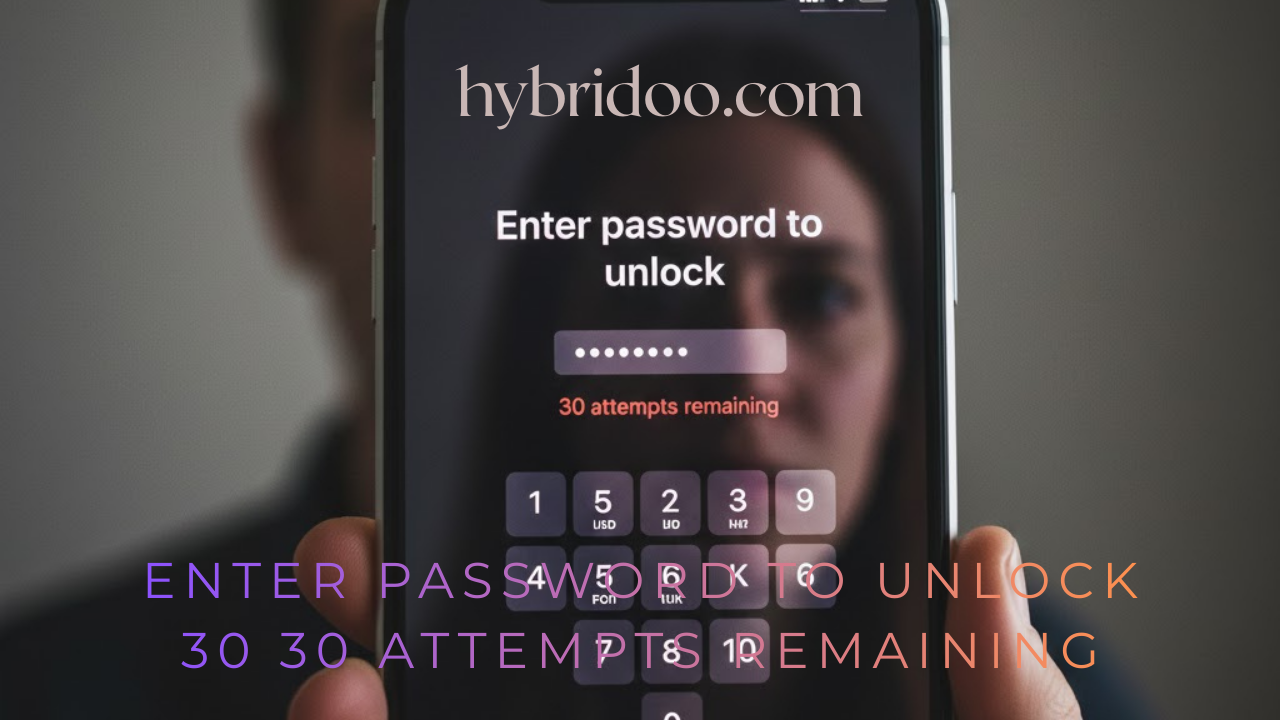
Seeing the message “Enter password to unlock. 30 attempts remaining” on your iPhone or iPad can send a wave of panic. Your device, which is usually accessed with a fingerprint or a glance, is now demanding a password you may have forgotten. This screen is more than an inconvenience; it’s a critical security state designed to protect your data.
This comprehensive guide will demystify this specific message. We’ll explain exactly why your device is showing it, what the “30 attempts” truly means, and provide a clear, step-by-step action plan to regain access while safeguarding your precious information. Understanding this process is the first step to resolving it calmly and effectively.
Why Am I Seeing This Message? Understanding the “Lockdown” State
The prompt “Enter password to unlock. 30 attempts remaining” is a core part of Apple’s robust security framework. It doesn’t appear randomly; it’s triggered by specific security conditions designed to prevent unauthorized access.
Common Triggers for the Password Prompt:
-
Multiple Failed Face ID or Touch ID Attempts: Your device requires a periodic passcode to re-enable biometrics. If Face ID or Touch ID fails too many times, it will fall back to the passcode for security.
-
Your Device Has Been Restarted: For security reasons, your iPhone or iPad requires your passcode after a restart before Face ID or Touch ID can be re-enabled.
-
Your Passcode Hasn’t Been Used in a While: If it’s been more than 48 hours since you last unlocked with your passcode, or 6 hours since the last unlock, the device will ask for it again.
-
A Remote Lock Command Was Issued: Using the “Lost Mode” in Find My will immediately lock the device and require the passcode.
-
A Critical Security Update: Sometimes, after installing an iOS update, the system requires verification via your passcode.
The key takeaway is that this is a standard security feature. Your device isn’t broken; it’s doing its job to keep your data safe from intruders.
What Does “30 Attempts Remaining” Actually Mean?
The number “30” is not arbitrary. It represents a security countdown. Here’s a breakdown of what happens as the attempts decrease:
-
30 to 6 Attempts: The device will remain accessible but will continue to prompt for the correct passcode.
-
5th Failed Attempt: You will be locked out for 1 minute.
-
6th Failed Attempt: The lockout period extends to 5 minutes.
-
7th Failed Attempt: Another 15-minute lockout.
-
8th and 9th Failed Attempts: The lockout increases to 60 minutes.
After the 10th failed attempt, the message changes dramatically. You will no longer see “Enter password to unlock. 30 attempts remaining.” Instead, you will see a different, more severe warning: “iPhone is disabled. Connect to iTunes.” or, in the worst-case scenario, “iPhone Unavailable.”
At this “iPhone is disabled” stage, the device has effectively erased all its data and settings to prevent a brute-force attack. This is a permanent security measure.
Table: The Security Countdown Explained
| Attempts | System Response | User’s Ability to Access Data |
|---|---|---|
| 1-4 | Continuous prompt | Full access upon correct password entry. |
| 5 | Locked out for 1 minute | Accessible after timer with correct password. |
| 6 | Locked out for 5 minutes | Accessible after timer with correct password. |
| 7 | Locked out for 15 minutes | Accessible after timer with correct password. |
| 8-9 | Locked out for 60 minutes | Accessible after timer with correct password. |
| 10+ | “iPhone is Disabled” / Data Erasure | Data is permanently erased. Device must be restored. |
Your Action Plan: Step-by-Step Solutions
If you’re staring at the “30 attempts remaining” screen, follow these steps in order. Do not proceed to the next step until the previous one has failed.
Step 1: Stay Calm and Try to Remember
This is the most crucial step. Do not start randomly guessing passwords. You have a buffer, but it can disappear quickly.
-
Think: What passcode did you set? Was it an older one? A birthday? A simple pattern?
-
Avoid Common Mistakes: Ensure Caps Lock isn’t on. If you use an alphanumeric password, check for typos.
Step 2: The Guaranteed Fix (If You Remember the Password)
If you recall your password, simply enter it. Your device will unlock immediately, and all functionality, including Face ID and Touch ID, will be restored. The attempt counter will reset, and you can use your device as normal.
Step 3: If You’ve Truly Forgotten the Password
If you cannot remember the password, your goal shifts from unlocking the device to recovering it without total data loss. The window for this is small.
Option A: Use Find My (If It Was Enabled)
This is your best chance to save the device and, if you have a recent backup, your data.
-
Go to from a computer or another device.
-
Sign in with your Apple ID and password.
-
Select your disabled device from the “All Devices” list.
-
Click “Erase [Device Name]”. This will remotely wipe the device, removing the passcode.
-
After the erase is complete, you can restore your device from an iCloud or iTunes backup.
Important: The erase command will only work if the device is connected to the internet.
Option B: Recovery Mode (The Last Resort)
If Find My was not enabled, you must use Recovery Mode. This process will erase the device and its data.
-
Connect your iPhone to a computer and open iTunes (or Finder on macOS Catalina or later).
-
Force restart your iPhone:
-
iPhone 8 or later: Press and quickly release the Volume Up button. Press and quickly release the Volume Down button. Then, press and hold the Side button until you see the recovery mode screen.
-
iPhone 7/7 Plus: Press and hold the Side and Volume Down buttons until you see the recovery mode screen.
-
iPhone 6s and earlier: Press and hold the Home and Top (or Side) buttons until you see the recovery mode screen.
-
-
When you get the option to “Restore” or “Update,” choose Restore. The computer will download iOS and reinstall it on your device, erasing the passcode in the process.
-
Once complete, you can set up the device as new or restore from a backup.
How to Prevent This Situation in the Future
Proactive measures are the best way to avoid the stress of a locked device.
-
Remember Your Passcode: Store it in a secure password manager that you can access from another device.
-
Maintain Regular Backups: This is non-negotiable. Enable iCloud Backup in your settings or regularly back up to a computer. A backup is your only defense against permanent data loss.
-
Use a Memorable but Secure Passcode: Avoid overly complex codes you will forget. A six-digit passcode is a good balance of security and memorability.
-
Keep Your Apple ID Credentials Safe: Your Apple ID password is the master key to using Find My and remotely managing your device.
Conclusion: Knowledge is Your Best Defense
The message “Enter password to unlock. 30 attempts remaining” is a stern but necessary guardian of your digital life. While encountering it can be alarming, understanding its purpose gives you the power to respond correctly. It is a warning, not a death sentence for your device. By staying calm, methodically trying to recall your password, and leveraging tools like Find My, you can navigate this security challenge successfully.
The ultimate lesson is the importance of regular backups. With a recent backup, even the worst-case scenario—a full device restore—becomes a minor inconvenience rather a catastrophic data loss event.