
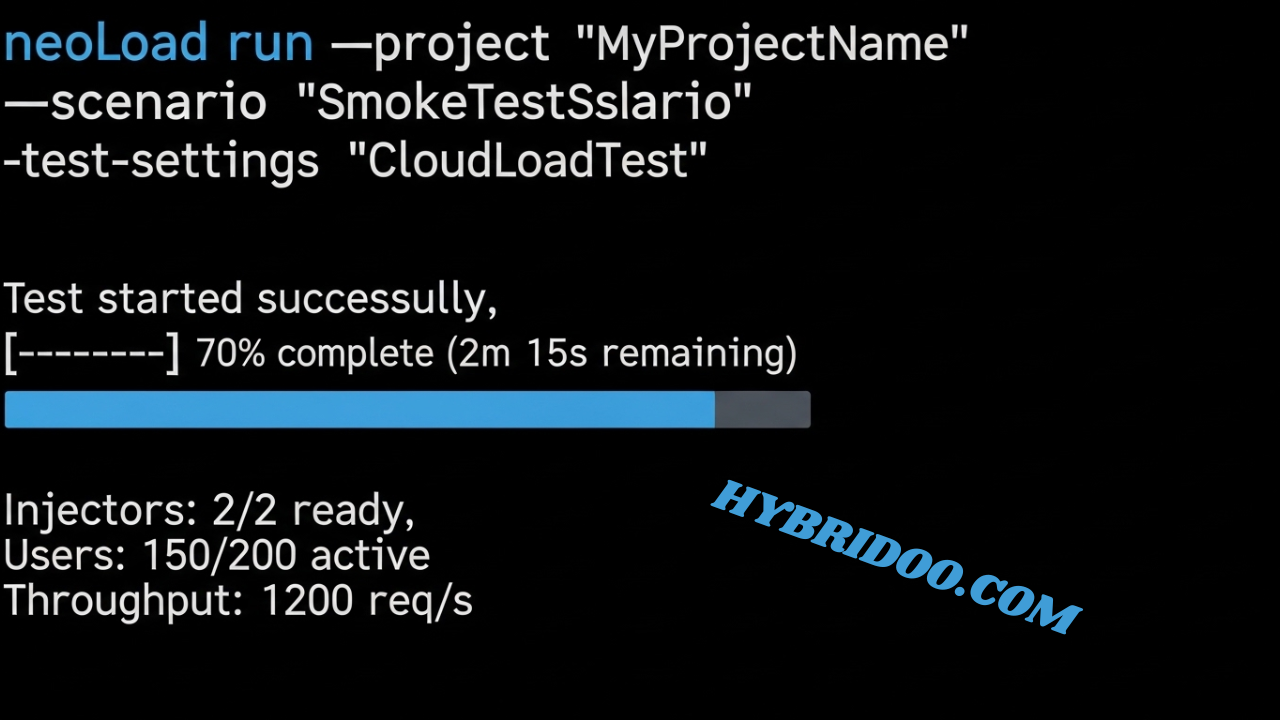
Introduction to Neoload and its Benefits
Neoload has become a go-to tool for performance testing, allowing teams to ensure their applications can handle the demands of real-world users. But did you know that running tests through the command line can streamline your workflow and enhance your testing efficiency? Whether you’re analyzing system performance or simulating heavy traffic, mastering the command line interface opens up a world of possibilities. It’s not just about speed; it’s about gaining deeper insights into your application’s behavior under stress. So, let’s dive in and explore how to run Neoload test runs using command line commands effectively!
Understanding the Command Line Interface of Neoload
The Command Line Interface (CLI) of Neoload is a powerful tool for performance testing. It allows users to execute tests without the need for a graphical interface, making it ideal for automation.
Navigating the CLI requires familiarity with various commands and options. Each command serves specific functions like starting tests, viewing results, or generating reports. Mastering these commands can enhance your workflow significantly.
Users can integrate the CLI into continuous integration/continuous deployment (CI/CD) pipelines seamlessly. This capability streamlines testing processes and ensures consistent performance evaluations across different environments.
One notable aspect of the Neoload CLI is its flexibility in handling parameters. You can customize test scenarios directly from the command line, enabling quick adjustments based on evolving requirements.
Leveraging Neoload’s Command Line Interface opens doors to increased efficiency and control over performance testing tasks.
Setting Up and Configuring Neoload for Command Line Use
Setting up NeoLoad for command line use is a straightforward process. First, ensure you have the latest version installed on your system. This guarantees access to all features and improvements.
Next, configure the environment variables. Add the NeoLoad installation path to your system’s PATH variable. This step allows you to run NeoLoad commands from any terminal window without navigating directly to its folder.
Once that’s done, open your command line interface and verify your setup by typing `neoload –version`. If everything is configured correctly, you’ll see the current version of NeoLoad displayed.
You can also customize settings in the config files found in the installation directory. Adjust parameters such as default project paths or logging preferences according to your testing needs.
This simple setup lays a solid foundation for running tests efficiently through the command line interface.
Preparing the Test Scenario and Parameters
Preparing your test scenario and parameters is crucial for a successful Neoload execution. Start by defining the specific user journeys you want to simulate. Think about how real users interact with your application.
Next, identify key variables like user load, ramp-up time, and duration. These elements will help create a realistic testing environment that mimics actual traffic patterns.
Once you’ve outlined these aspects, configure them within Neoload’s interface or through the command line interface. It allows for greater flexibility in adjusting parameters on-the-fly.
Don’t forget to consider different network conditions that might affect performance. Simulating various scenarios helps pinpoint potential bottlenecks.
Document all settings clearly so team members can replicate tests if needed. This streamlined approach saves time and enhances collaboration across your development team.
Running the Test with Command Line Instructions
To run a Neoload test via the command line, start by opening your terminal or command prompt. Navigate to the directory where your Neoload project is located. This is crucial for executing commands effectively.
Next, you’ll need to use specific commands that define what you want to achieve. For instance, typing `neoload.exe -run` followed by your parameters initiates the test run. Make sure to specify options like project names and scenario identifiers accurately.
After entering the command, hit Enter. Your test will commence based on the configurations you’ve set up in advance.
Keep an eye on any output messages that appear in real-time during execution. These messages can inform you about progress and any potential issues that arise while running tests from the command line interface.
Analyzing Results and Troubleshooting Issues
After running your tests, analyzing the results is crucial. Neoload provides detailed reports that help you understand performance metrics. Look for key indicators like response times, throughput, and error rates.
Start by identifying any bottlenecks in your application. High response times can indicate server overload or inefficient code. Examine each step of your test to pinpoint where issues arise.
If you encounter errors, make use of Neoload’s logs for deeper insights. Logs often reveal connection problems or misconfigurations that could skew results.
It’s also wise to compare current test results with historical data. This comparison can highlight trends over time—allowing proactive adjustments before they become significant issues.
When troubleshooting, engage in a systematic approach: isolate variables and retest frequently. Each iteration brings clarity and enhances the reliability of your findings as you refine the testing process.
Tips and Tricks for Efficiently Running Neoload Tests via Command Line
To run Neoload tests efficiently via the command line, start by using templates for your test scenarios. This saves time and ensures consistency across multiple runs.
Leverage environment variables to manage configuration settings. By doing so, you avoid hardcoding sensitive information directly into your scripts.
Use batch files or shell scripts to automate repetitive tasks. This way, you streamline the process and reduce human error during execution.
Adjust the logging level according to your needs. While detailed logs can be valuable for debugging, they may slow down performance if not managed properly.
Regularly update your Neoload version. New releases often come with performance improvements and bug fixes that enhance command line functionality.
Conclusion:
The Convenience and Effectiveness of Using Neoload’s Command Line Interface for Performance Testing
Using Neoload’s command line interface streamlines the performance testing process significantly. It provides a powerful way to automate tests, enhancing your workflow efficiency.
The simplicity of executing tests via the command line cannot be overstated. This method allows for quick integrations into CI/CD pipelines, making it ideal for DevOps environments where speed is crucial.
Flexibility is another major advantage. You can easily customize scripts and parameters without navigating through complex graphical interfaces. This capability empowers testers to adapt their strategies on-the-fly based on specific needs.
Furthermore, running tests in batch mode enables extensive testing scenarios with minimal effort. The detailed logs generated during these runs are invaluable for troubleshooting and optimizing application performance post-test.
Adopting Neoload’s command line capabilities enhances both productivity and effectiveness for teams aiming to achieve peak application performance under various conditions.
FAQs
When diving into NeoLoad, users often have questions. One common query is about how to use the NeoLoad testing tool effectively. The intuitive interface and rich features make it a popular choice for performance testing.
API testing is another frequent topic of discussion. Many wonder how to execute this efficiently within the platform. With its robust API capabilities, NeoLoad allows seamless integration and validation of backend services.
Another interesting aspect is “NeoLoad as code.” This approach enables testers to manage their scenarios through scripts, promoting version control and automation.
Generating reports in NeoLoad can also raise eyebrows. Users seek clarity on the steps involved in creating comprehensive test results for analysis and presentation purposes.
Curious minds always want answers tailored to specific use cases or challenges faced during tests. Engaging with community forums or support channels often yields helpful insights.
How to use NeoLoad testing tool?
Using NeoLoad is straightforward yet powerful for performance testing. First, install the tool on your system. The installation process is user-friendly, requiring minimal configuration.
Once set up, launch NeoLoad and create a new project. You can design your test scenarios by recording user interactions with your application. This feature captures all requests made during usage, providing a realistic simulation of actual behavior.
Next, configure virtual users and define their behaviors in the test scenario. Adjust parameters such as ramp-up time and load patterns to mimic real-world conditions effectively.
For execution, simply click “Run” within the interface or use command-line options for more advanced setups. Monitoring live results provides immediate insights into performance bottlenecks throughout the process.
After running tests, explore detailed reports that highlight response times and error rates to inform optimization strategies. Each step builds towards ensuring your application’s scalability under pressure.
How to do API testing in NeoLoad?
API testing in NeoLoad is straightforward and efficient. Start by creating a new project within the tool. Focus on defining your API endpoints accurately to ensure comprehensive coverage.
Once your endpoints are set, you can utilize the built-in recorder. This feature captures requests seamlessly as you navigate through your application’s API functionalities. Don’t forget to parameterize any dynamic data for more realistic test scenarios.
You can also create assertions to validate responses against expected outcomes. This ensures that APIs return correct status codes, response times, and content types.
After setting up tests, configure load profiles according to your specific requirements. Execute the test directly from NeoLoad or via command line for automation purposes.
Analyzing results is crucial; take advantage of NeoLoad’s reporting capabilities to identify bottlenecks and optimize performance effectively during subsequent runs.
What is NeoLoad as code?
NeoLoad as Code refers to the practice of integrating NeoLoad’s performance testing capabilities directly into your development workflow. This approach allows teams to manage and automate their load tests using code, making it easier to incorporate performance testing into continuous integration/continuous deployment (CI/CD) pipelines.
By leveraging configuration files or scripts, testers can define scenarios, parameters, and execution commands in a programmable format. This shift enables version control for test configurations alongside application code.
With NeoLoad as Code, collaboration becomes seamless between developers and QA engineers. Everyone can contribute to the creation and maintenance of performance tests right from their preferred environments.
Moreover, this method enhances reproducibility. Teams can run consistent tests across different stages of development without manual interventions or errors commonly associated with traditional methods.
How to generate a report in NeoLoad?
Generating a report in NeoLoad is an essential step for analyzing the results of your performance tests. After executing your test run through command line, you can create reports that provide valuable insights into system behavior under load.
To generate a report, you typically start by accessing the NeoLoad GUI or utilize available command line options. If you’re opting for the command line approach, you’ll use specific commands to initiate reporting based on your saved test results. This often involves specifying the path to your result files and choosing what type of report you need—whether it’s summary statistics or detailed logs.
NeoLoad supports various formats such as HTML, PDF, or CSV for outputting these reports. The flexibility allows you to customize how data is presented according to stakeholder needs. It’s important to ensure all parameters are correctly set in order to capture relevant metrics effectively.
Make sure also that any required plugins or configurations are enabled if you’re using advanced features for reporting. Having clear documentation from NeoLoad can guide this process smoothly.
Once generated, review these reports closely. They will highlight key metrics like response times, error rates, and throughput during test scenarios which ultimately helps inform decisions around application performance and scalability improvements.
By mastering how to generate reports within NeoLoad after running tests via command line commands efficiently showcases not just performance testing capabilities but also analytical insights crucial for development teams aiming at optimizing their applications.